home | news | docs | download | plugins | resources | list | links
home | news | docs | download | plugins | resources | list | links
Vulnerability Disclosure
- Installation
- Memory
- Upgrading
- Sharing the Java Runtime
- Command Line Options
- Troubleshooting
- Contents of ImageJ Folder
- Screenshot
Installation
To install and run ImageJ, download ImageJ bundled with either 32-bit or 64-bit Java, extract the ImageJ directory from the ZIP archive, change to the ImageJ directory and double click the "ImageJ" launcher. If the "ImageJ" window is too small, set "GUI scale" in the Edit>Options>Appearance dialog to a value greater then 1.0.Memory
Use the Edit>Options>Memory & Threads command to specify the maximum amount of memory available to ImageJ, initially set to 75% of available RAM by the ImageJ launcher. To make more than 2GB available requires a 64-bit computer running a 64-bit version of Linux and a 64-bit version of Java.Upgrading
Use the Help>Update ImageJ command to update to the latest version of ImageJ.Sharing the Java Runtime
You can specify the location of the plugins directory from the command line using the -ijpath option. This allows ImageJ to be in a common location (e.g., /usr/local/ImageJ) and run from the users home directory using a shell script. This example runs ImageJ from /usr/local/ImageJ using a plugins directory at /home/wayne/ImageJ/plugins:This example uses Java 1.6 SDK to run ImageJ from /usr/local/ImageJ with the plugin directory also located in /usr/local/ImageJ:cd /usr/local/ImageJ ./jre/bin/java -Xmx512m -jar ij.jar -ijpath /home/wayne/ImageJ/usr/java/jdk1.6/bin/java -Xmx512m -jar /usr/local/ImageJ/ij.jar -ijpath /usr/local/ImageJCommand Line Options
ImageJ recognizes the following command line options:"file-name" Opens a file Example 1: blobs.tif Example 2: /Users/wayne/images/blobs.tif Example 3: e81*.tif -macro path [arg] Runs a macro or script (JavaScript, BeanShell or Python), passing an optional string argument, which the macro or script can be retrieve using the getArgument() function. The macro or script is assumed to be in the ImageJ/macros folder if 'path' is not a full directory path. Example 1: -macro analyze.ijm Example 2: -macro script.js /Users/wayne/images/stack1 Example 2: -macro script.py '1.2 2.4 3.8' -batch path [arg] Runs a macro or script (JavaScript, BeanShell or Python) in batch (no GUI) mode, passing it an optional argument. ImageJ exits when the macro finishes. -eval "macro code" Evaluates macro code Example 1: -eval "print('Hello, world');" Example 2: -eval "return getVersion();" -run command Runs an ImageJ menu command Example: -run "About ImageJ..." -ijpath path Specifies the path to the directory containing the plugins directory Example: -ijpath /Applications/ImageJ -portSpecifies the port ImageJ uses to determine if another instance is running Example 1: -port1 (use default port address + 1) Example 2: -port2 (use default port address + 2) Example 3: -port0 (don't check for another instance) -debug Runs ImageJ in debug mode Troubleshooting
Here are some common problems encountered when running ImageJ on Linux, and their solutions:
- Windows are blank or stacks are not displayed correctly on Ubuntu with compiz enabled.
Disable all effects in System Preferences > Appearance > Visual Effects.
- ALT key does not work.
"Alt" key issues in KDE may be related to default key assignments, which can be changed. In KDE, go to System Settings>Window Behaviour>Window Behaviour (again)>Window Actions, then change the "Modifier key" from "Alt" to "Meta". KDE will then use the "Windows" key as the modifier and leaves the "Alt" key available to ImageJ.
Contents of ImageJ Folder:
- ij.jar
- This JAR (Java Archive) file is the platform-independent core of ImageJ. It is the only file changed when you upgrade using the Help>Update ImageJ command.
- ImageJ
- This is the ImageJ launcher.
- jre
- This folder contains the 32-bit ot 64-bit Java 1.6.0_24 runtime from Oracle.
- macros
- This folder contains example macros. The StartupMacros.txt file in this folder contains macros and macro tools that are automatically installed when ImageJ launches. To run a macro, drag and drop it on the ImageJ window and run it by pressing ctrl-r (Macros>Run Macro).
- plugins
- This folder contains a small sample of the hundreds of plugins available for ImageJ. The plugins in this folder are installed in the Plugins menu when ImageJ starts.
- luts
- This folder contains LUTs (LookUp Tables) that are installed at startup in the Image>Lookup Tables menu. Use the Image>Color>Display LUTs command to view all the LUTs in this menu.
- images
- This folder contains images used by ImageJ, such as the ImageJ icon (icon.png) and an optional custom cursor (example).
Screenshot
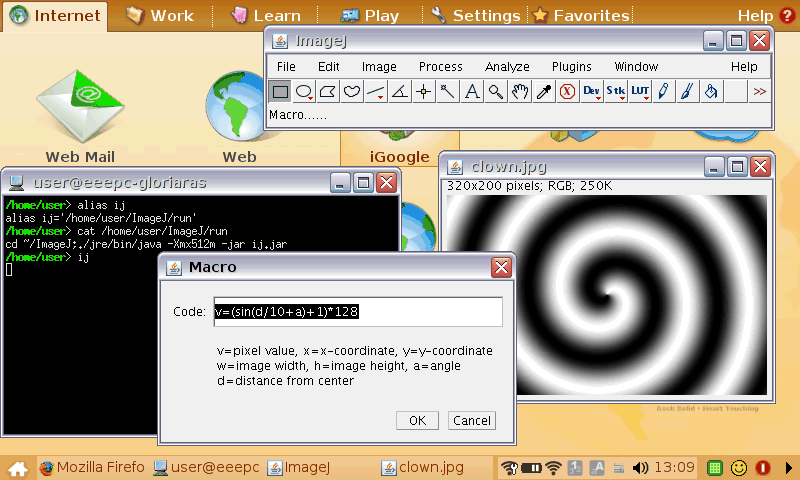
This screenshot, created by pressing shift-g (Plugins>Utilities>Capture Screen), shows ImageJ running on a Linux netbook with a 800x480 screen, 512MB RAM and 4GB SSD.